Check the task. Keep your place.
AISLAND is an agent workspace at the top of the screen. From the window you’re already using, see which conversation needs a reply and send a follow-up to a supported agent.
- Year
- 2026
- Scope
- Product · Interaction · Visual design · Development
- Desktop
- macOS · Windows
- Mobile
- iOS · Android
The problem
The task is finished. You still have to find your way back.
Halfway through an article, a notification says an agent has finished. All you want to say is “List the paragraphs you changed.” To send that sentence, you leave the article, find the app and pick the right conversation from several that look alike. Then you have to find the sentence you were reading.
With several agents open, an app icon tells you little about your next move. You need the conversation title, its last reply and whether it needs your approval.
Discovery
I followed a second instruction all the way to its destination.
The prototype had one concrete goal: send another instruction to a finished conversation while keeping an article open. Feedback on successive builds pinpointed three parts of that interaction.
- Recognizing the thread
- Several rows shared the Codex name and icon. I grouped conversations under one agent and gave each branch its own title, using the user’s name for the conversation wherever available, alongside the latest reply.
- Getting a cursor
- The bubble next to a finished task opened, yet initially it could not accept typing. I began checking the full interaction: click into the field, type, then move the pointer away and check the draft.
- Checking delivery
- A test confirmed the text reached the correct WorkBuddy input field. Whether the agent actually started the task was a separate question. The interface now distinguishes a queued task, a failed send and a delivery that still needs confirmation.
Interaction design
Give each conversation its own next move.
Move the pointer to the top of the screen. On a MacBook the island opens around the notch; on Windows it opens at the top center. Follow an agent’s branch, read its last reply and hover over the status at the right to enter a follow-up. Move away to return to the article.
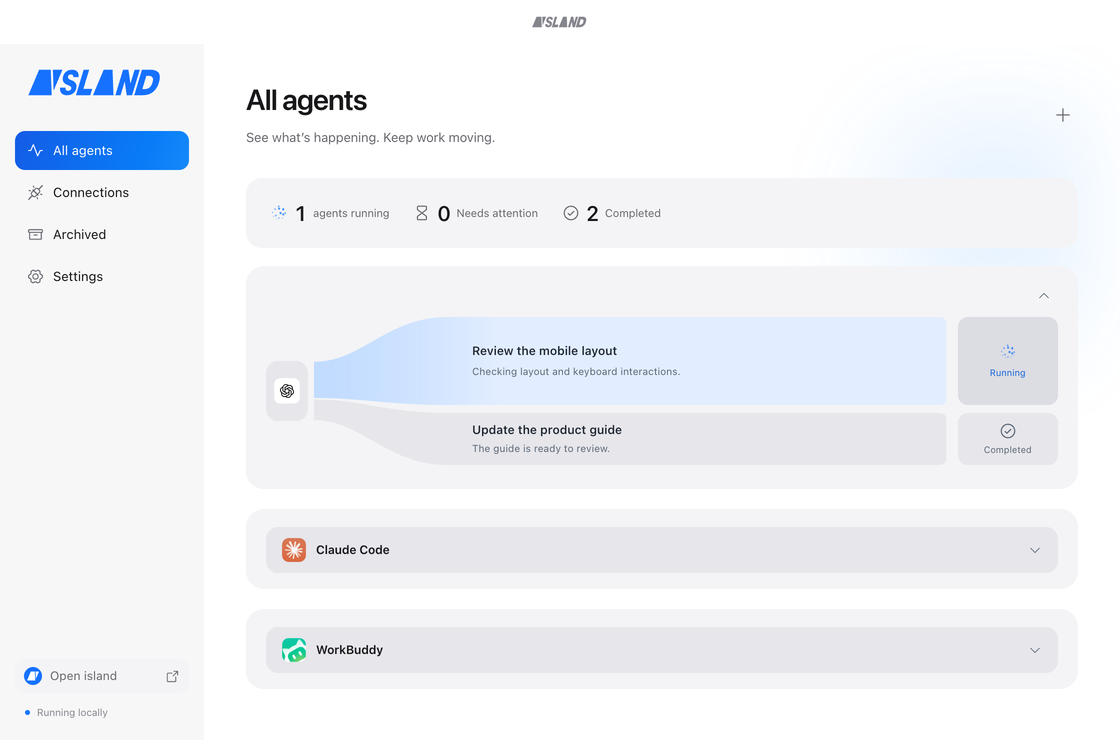
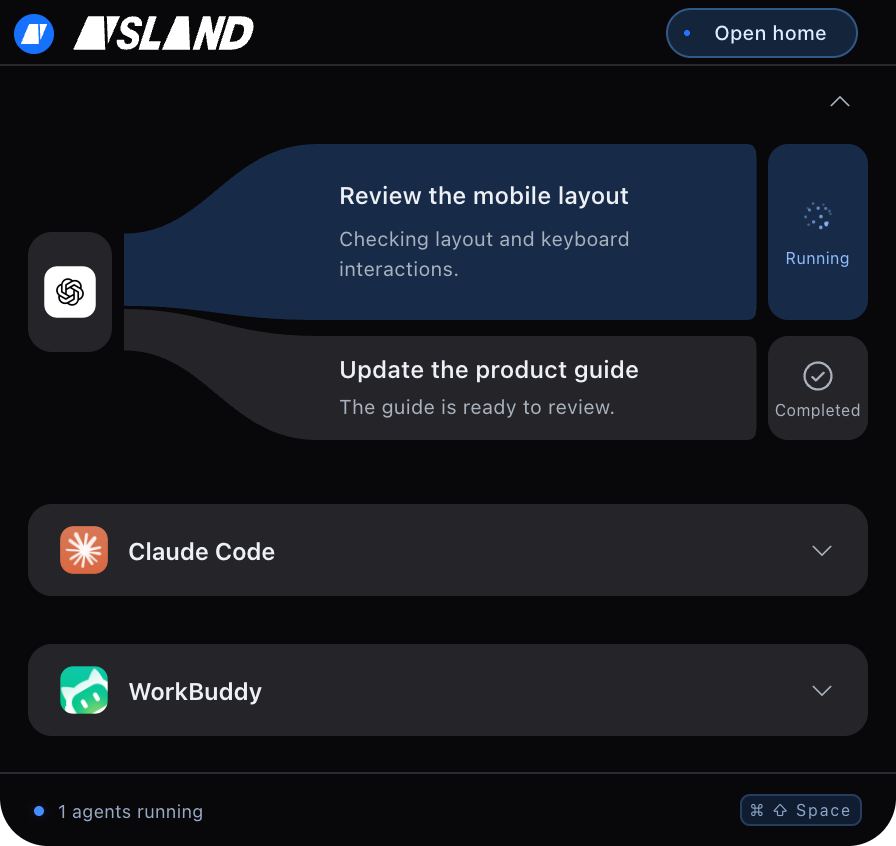


Old branches can be hidden individually. Even with an empty island, Restore conversation lets you bring back a particular thread by agent. Its history stays with the original conversation.
Visual design & motion
Movement tells you where the work is.
The black panel meets the physical notch. A blue band travels along a running branch. Finished branches settle into gray. Motion catches the eye first, followed by title, status and reply. A written status also identifies every state.
A cut through the wordmark
The left edge of A runs parallel to the right edge of I. Extend that line and it meets the bottom-right corner of A. The full name fits the expanded header; the first two forms carry the identity at its smallest size.

Light behind the type
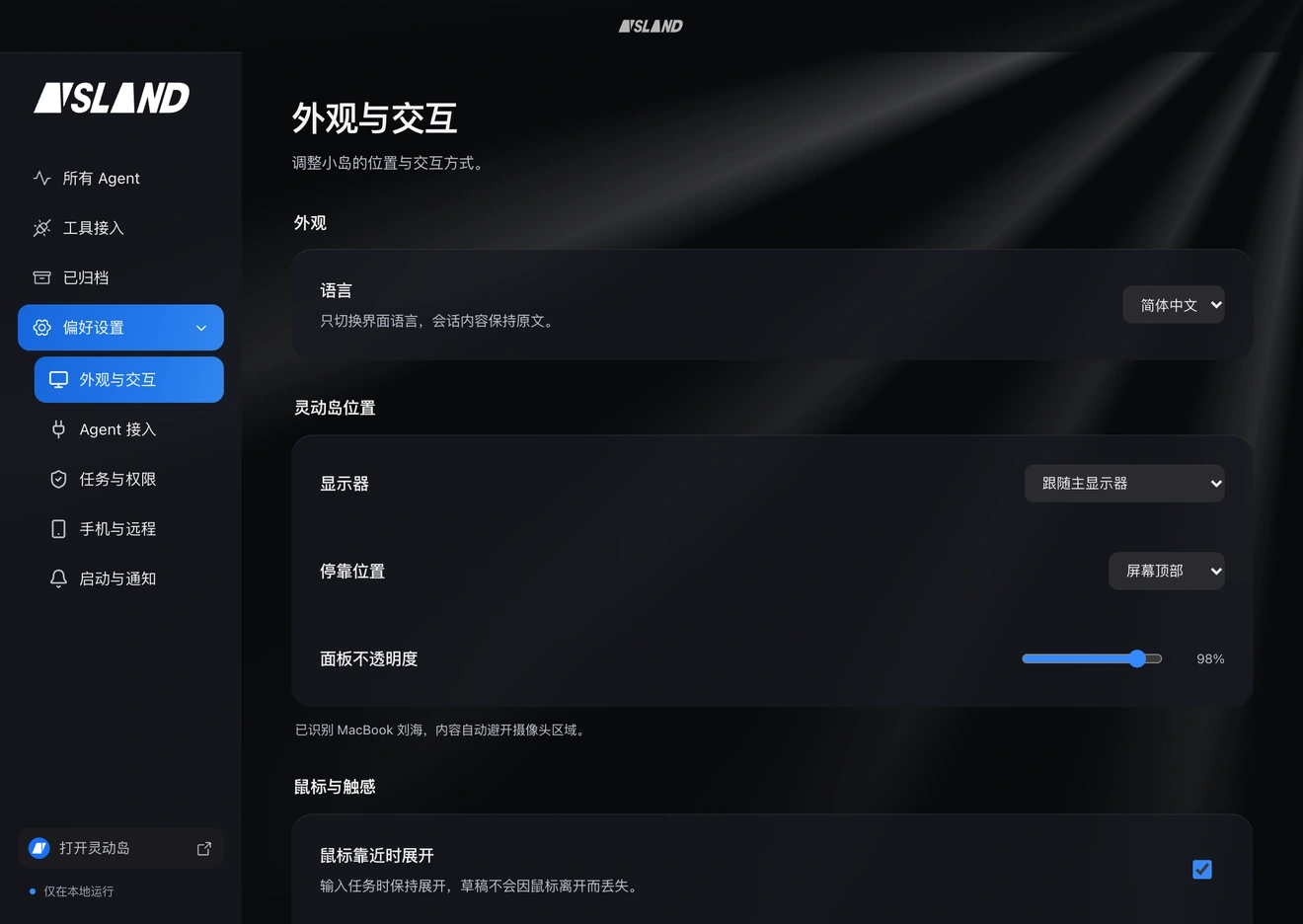
The desktop workspace layers frosted panels over black. Gray and white rays respond gently to the pointer from the top right. Text stays solid and approval dialogs have a denser backing. Reduce Motion holds the rays still.
Implementation
How does an instruction reach its original conversation?
The desktop app handles incoming events, layout and outgoing instructions separately. The conversation’s identity connects them throughout.
Receive the event
An adapter reports task starts, tool calls, completions and approval requests to a local HTTP endpoint. It listens on 127.0.0.1 and authenticates requests with a local token.
Lay out the conversation
A session ID joins events to history; the agent identity chooses the group. A recently active task gets an 88-pixel branch. After five quiet minutes it narrows to 60 pixels, and a finished task gets 52. SVG curves connect those rows back to the icon.
Deliver the follow-up
Codex, Claude Code and WorkBuddy have distinct continuation paths. A busy conversation can hold one queued follow-up. An outgoing attempt is written to disk before dispatch. When receipt is uncertain, the app asks the user to check the conversation before sending again.
Away from the desk
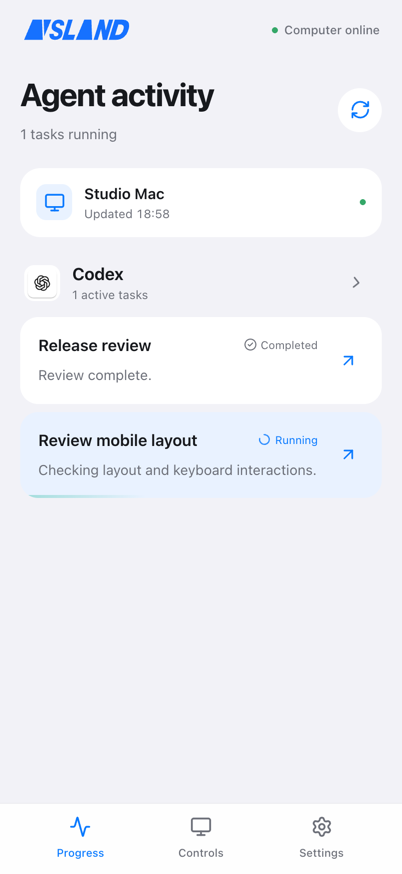
After the user enables mobile sync and pairs a phone, the desktop encrypts the status with the pairing key and AES-GCM before relaying it. The phone displays progress from the agents on the paired computer.